Windows
Download Exegis safely for Windows
Open the official Exegis Releases page from the website navigation. Avoid third-party download sites because they may redistribute an old or modified installer.
Begin lesson →FREE · SELF-PACED · 30 HOW-TO LESSONS
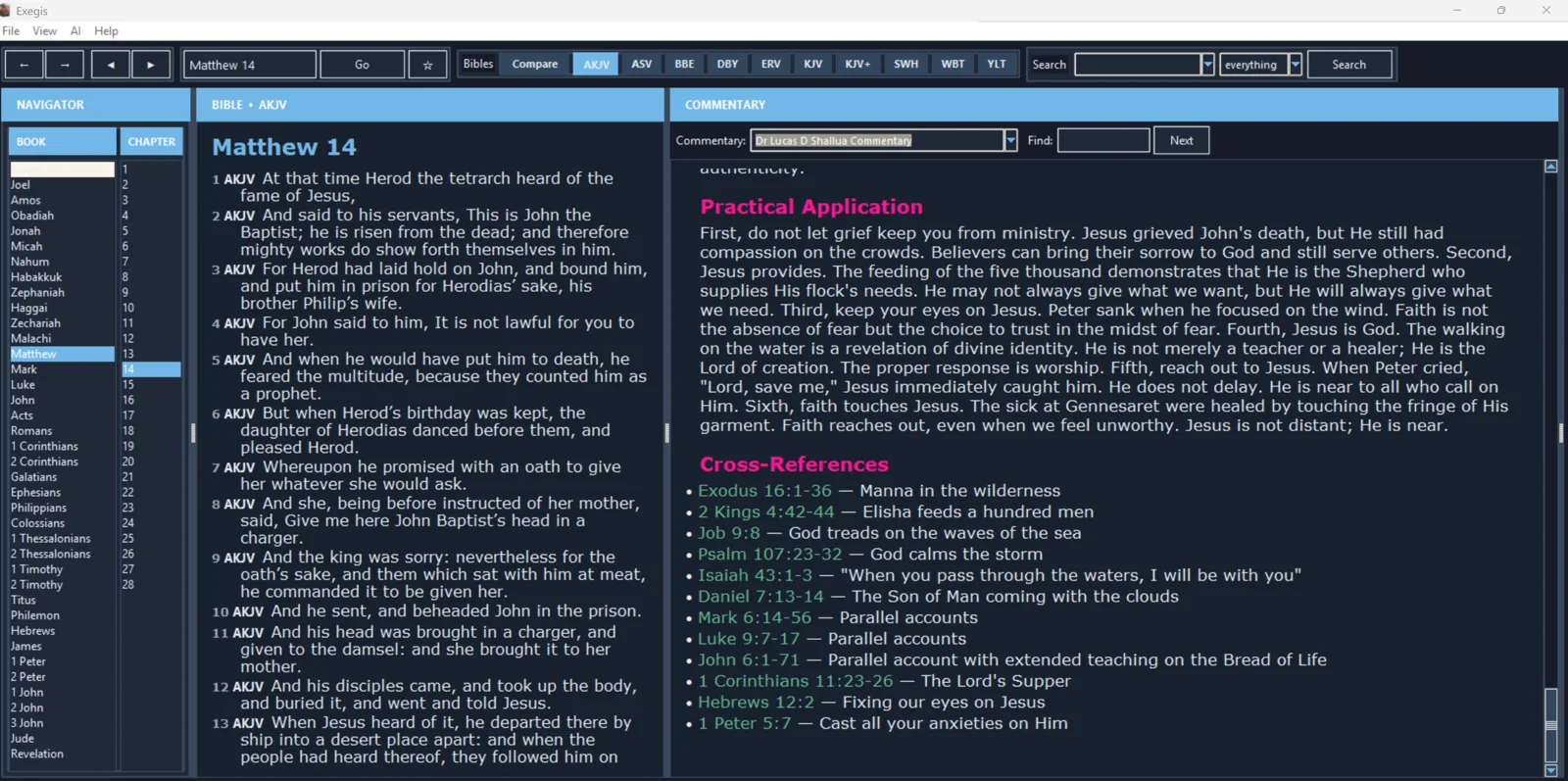
Learn the complete study workflow—from safe installation to Scripture research, original-language study, commentary, Hard Texts, Passage Lab, teaching preparation, and offline Android study.
THE CURRICULUM
Each lesson gives you a defined outcome, detailed procedure, authentic screenshot, guided visual walkthrough, practice assignment, troubleshooting notes, and a completion check.
Windows
Open the official Exegis Releases page from the website navigation. Avoid third-party download sites because they may redistribute an old or modified installer.
Begin lesson →Windows
Right-click the downloaded installer, choose Properties, and confirm that its filename and size look complete. If Windows shows an Unblock option for a trusted download, review the source before selecting it.
Begin lesson →Windows
Double-click the verified installer and approve the Windows prompt. The setup window should identify Exegis before it changes your computer.
Begin lesson →Windows
Open Exegis from the Start menu. Allow the first launch to finish creating its working folders and loading bundled resources.
Begin lesson →Windows
Identify the main navigation controls: Bible, book, chapter, and verse. These controls determine the passage followed by linked study resources.
Begin lesson →Windows
Select the Bible control, then choose the translation you want to read. Confirm the active translation before quoting a verse.
Begin lesson →Windows
Open appearance or theme settings and preview the available palettes. Choose a theme with sufficient contrast for your room and display.
Begin lesson →Windows
Open Bible Search and select the translation to search. Search results belong to the wording of that translation.
Begin lesson →Windows
Choose a base translation and read the passage as a complete unit before comparing individual words.
Begin lesson →Windows
Select the KJV+ or another Strong’s-enabled Bible. Confirm that linked Hebrew or Greek numbers appear beside relevant words.
Begin lesson →Windows
Start with a question raised by the passage, not merely an interesting English word. Identify the underlying Hebrew or Greek lemma.
Begin lesson →Windows
Open the commentary panel and place Dr. Lucas D. Shallua Commentary first when choosing among installed resources.
Begin lesson →Windows
Select a linked reference in commentary or Bible notes. Confirm that Exegis opens the intended book, chapter, and verse.
Begin lesson →Windows
Select a verse or passage and create a note with a descriptive title. Include the reference and the question that prompted the note.
Begin lesson →Windows
Open the module or resource manager and review categories such as Bibles, commentaries, dictionaries, books, topics, and lexicons.
Begin lesson →Windows
Open the Hard Texts Atlas from Exegis or the website and search by question, passage, category, or biblical book.
Begin lesson →Windows
Open Passage Lab and choose a biblical passage or topic. Prefer a defined passage small enough to interpret in context.
Begin lesson →Windows
State the passage’s central claim in one clear sentence. The sermon idea should arise from the text’s argument.
Begin lesson →Windows
Choose the teaching format according to the setting. A lesson emphasizes objectives; a group study emphasizes guided discovery; a devotional emphasizes focused response.
Begin lesson →Windows
Copy or export completed notes and Passage Lab documents to a clearly named project folder. Open the exported file to verify its contents.
Begin lesson →Android
Open the official Exegis Google Play listing from the website or search Google Play for Exegis and verify the developer and app identity.
Begin lesson →Android
Open Exegis and allow the first-run preparation to finish.
Begin lesson →Android
Tap the current book name to open the canonical book selector.
Begin lesson →Android
Open appearance settings and compare the available light and night themes.
Begin lesson →Android
Press or select a verse to reveal available actions.
Begin lesson →Android
Select the KJV+ Bible and locate the linked Strong’s numbers.
Begin lesson →Android
Navigate the Bible to the passage before opening commentary.
Begin lesson →Android
Open the Books or library area and choose an installed title.
Begin lesson →Android
Open Content Packs while connected to reliable internet.
Begin lesson →Android
Keep Exegis updated through Google Play so installed builds come from the verified release channel.
Begin lesson →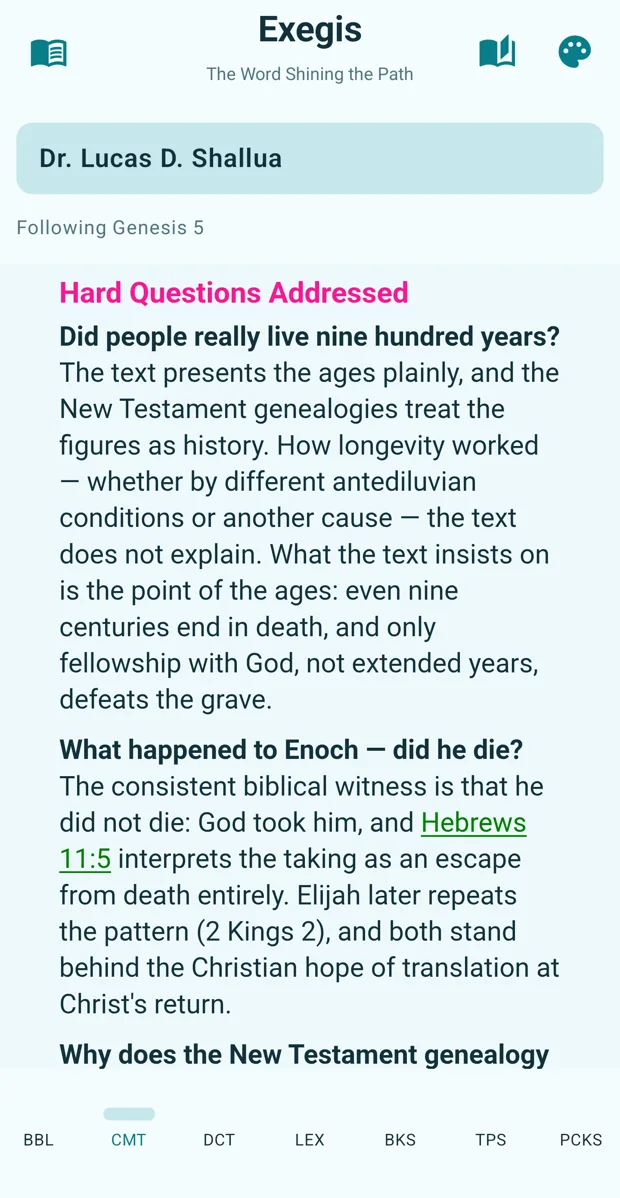
LESSONS 21–30
Carry the same disciplined study habits into the mobile reader: navigation, themes, highlights, Strong’s links, commentary, books, content packs, and offline study.
Begin Android course