Windows · LESSON 20
Export, back up, update, and troubleshoot
Follow this procedure inside Exegis, pause after each action, and verify the result before moving forward.
What you will accomplish
Export one document, create a backup, and write a complete sample bug report using the five required facts.
Use Exegis 1.15.26 or later, keep this lesson open beside the application, and preserve personal data before making installation or storage changes.
GUIDED VISUAL
Screen walkthrough
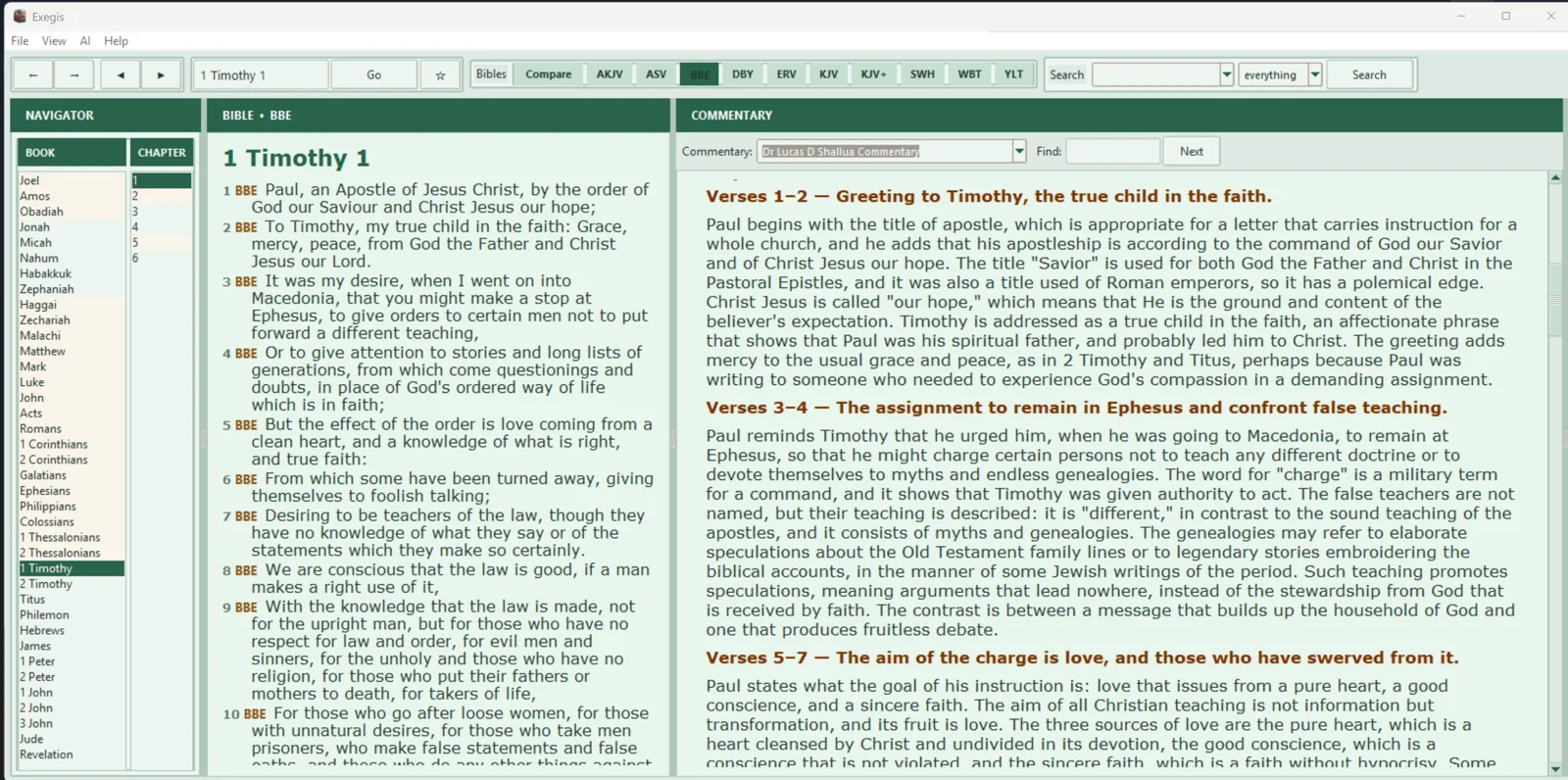
The lesson is recording-ready. The guided walkthrough uses the authentic screenshot and the exact narration sequence below; a recorded WebM/MP4 can be inserted here without changing the page.
FOLLOW IN ORDER
Detailed procedure
- 1
Copy or export completed notes and Passage Lab documents to a clearly named project folder
Copy or export completed notes and Passage Lab documents to a clearly named project folder. Open the exported file to verify its contents.
- 2
Back up personal notes, teaching projects, and irreplaceable resources to a second location
Back up personal notes, teaching projects, and irreplaceable resources to a second location. An application reinstall is not a backup strategy.
- 3
Check the official Releases page for updates and read the release notes before installing
Check the official Releases page for updates and read the release notes before installing. Close Exegis before upgrading.
- 4
When something fails, record the Exegis version, Windows version, exact action, expected result, actual result, and any message shown
When something fails, record the Exegis version, Windows version, exact action, expected result, actual result, and any message shown.
- 5
Restart the application, test with a known bundled resource, and preserve your data before reinstalling
Restart the application, test with a known bundled resource, and preserve your data before reinstalling. Send a reproducible report through the official Contact page.
YOUR TURN
Practice assignment
Export one document, create a backup, and write a complete sample bug report using the five required facts.
If the screen looks different
- Confirm that your installed Exegis version is 1.15.26 or later.
- Look for the same control inside the navigation menu when using a narrow window or phone.
- Confirm the active Bible, resource, passage, and theme before assuming content is missing.
- Restart Exegis after an installation or resource change, then repeat the last verified step.
- Use the official Contact page and include version, device, steps, expected result, and actual result.